Connecting Your Repositories
GitVelocity integrates with your version control provider (GitHub, Bitbucket, or GitLab) during the signup flow. You choose your platform, authorize read-only access, and select which repositories to track. From that point on, every merged pull request is automatically analyzed and scored. Code is processed in real-time and is never stored after scoring completes.
GitHub
GitVelocity connects to GitHub through a dedicated GitHub App installed on your organization or personal account.
Permissions Required
The GitVelocity GitHub App requests the minimum permissions necessary to analyze merged pull requests:
| Permission | Access Level | Why It Is Needed |
|---|---|---|
| Pull requests | Read | Read PR diffs, titles, descriptions, and merge status |
| Commits | Read | Access commit messages and metadata associated with PRs |
| Repository metadata | Read | Identify repository names, languages, and structure |
GitVelocity does not request write access to your repositories. It cannot modify code, merge pull requests, or change any repository settings.
Setup
During the GitVelocity signup flow:
- Select GitHub as your provider.
- You are redirected to GitHub to install the GitVelocity GitHub App.
- Select the organization (or personal account) you want to connect.
- Choose which repositories to grant access to -- either all repositories or a specific subset.
- Click Install to complete the authorization.
- You are returned to GitVelocity to confirm your organization details.
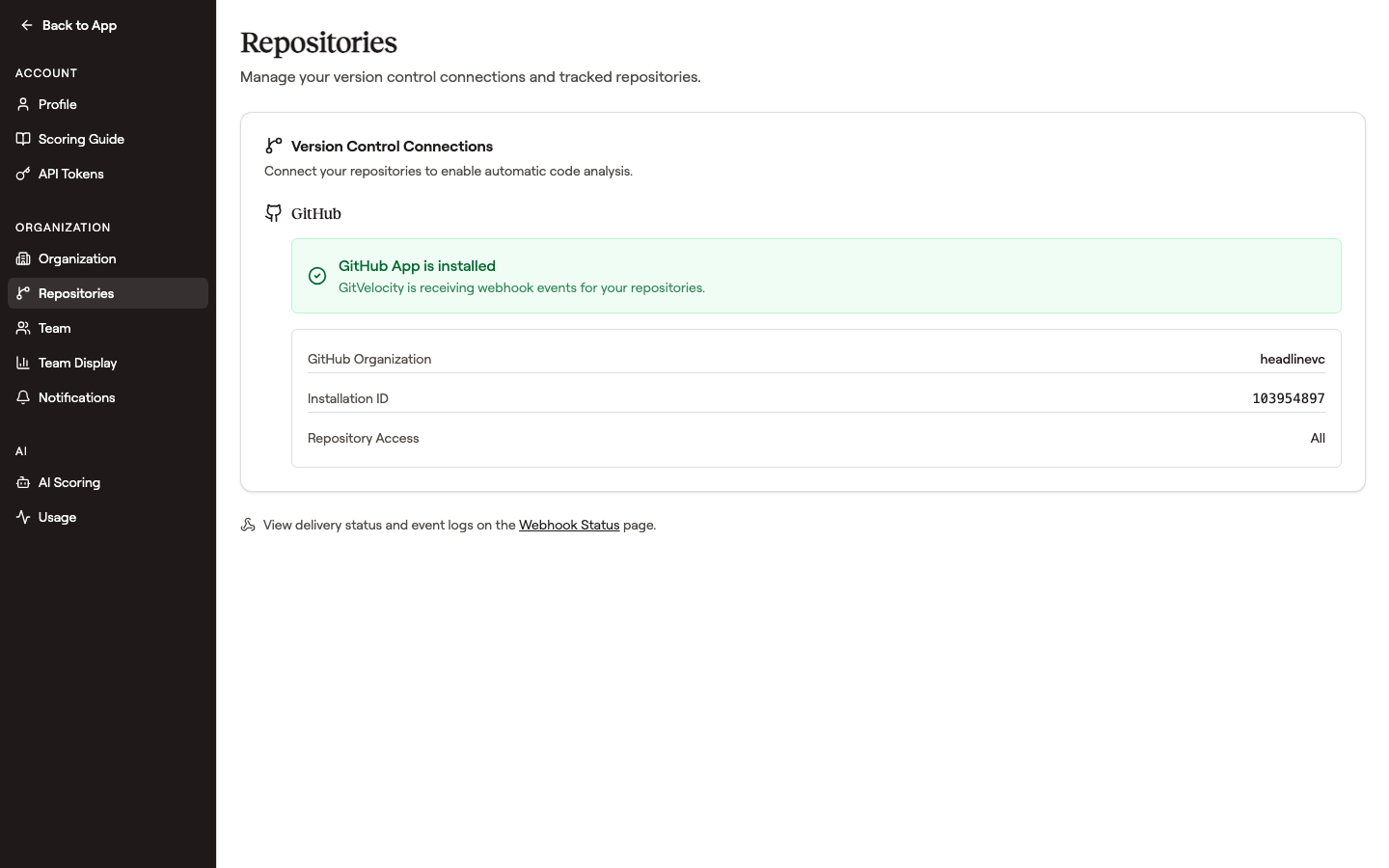 Once the install completes, the Repositories settings page confirms the connection and shows the install scope. A link at the bottom takes you to the Processing Log page to inspect webhook deliveries.
Repository Selection
During installation, GitHub gives you two options:
All repositories -- GitVelocity automatically tracks every repository in the organization, including any created in the future.
Select repositories -- Choose specific repositories to track. You can add or remove repositories later from GitHub > Settings > Applications > GitVelocity without reinstalling.
Starting with a subset of active repositories and expanding coverage over time works well for most teams.
After Installation
Once the GitHub App is installed, scoring is fully automatic:
- GitVelocity listens for pull request merge events on your selected repositories.
- When a PR merges, the diff is read and queued for analysis.
- The AI model evaluates the PR across six complexity dimensions and produces a 0--100 score.
- The score appears on your dashboard, typically within a few minutes of the merge.
No additional configuration is needed.
Bitbucket
GitVelocity supports Bitbucket Cloud workspaces through an OAuth integration.
Permissions Required
The Bitbucket OAuth consumer requests read access to:
- Pull requests -- read diffs, titles, descriptions, and merge status
- Repositories -- identify repository names and metadata
- Account -- identify workspace membership
As with GitHub, GitVelocity does not request write access. It cannot modify code or change any workspace settings.
Setup
During the GitVelocity signup flow:
- Select Bitbucket as your provider.
- You are redirected to Bitbucket to authorize the GitVelocity OAuth consumer.
- Grant read access to your Bitbucket workspace.
- You are returned to GitVelocity to select which repositories to track.
After Connection
Once connected, Bitbucket works identically to GitHub. Merged pull requests are automatically analyzed and scored. Manage which repositories are tracked from the Settings page within GitVelocity.
GitLab
GitVelocity supports GitLab groups and projects through an OAuth integration, following the same model as Bitbucket.
Permissions Required
The GitLab OAuth application requests read access to:
- Merge requests -- read diffs, titles, descriptions, and merge status
- Repositories -- identify project names and metadata
- Profile -- identify group membership
As with GitHub and Bitbucket, GitVelocity does not request write access. It cannot modify code or change any project settings.
Setup
During the GitVelocity signup flow:
- Select GitLab as your provider.
- You are redirected to GitLab to authorize the GitVelocity OAuth application.
- Grant read access to your GitLab group.
- You are returned to GitVelocity to select which projects to track.
After Connection
Once connected, GitLab works identically to GitHub and Bitbucket. Merged merge requests are automatically analyzed and scored. Manage which projects are tracked from the Settings page within GitVelocity.
Troubleshooting
Organization or Workspace Approval Required
Some organizations require an admin to approve new app installations or OAuth integrations. If you see a pending approval message after attempting to connect, ask an organization owner or workspace admin to approve the GitVelocity integration from their admin settings.
Private Repositories
GitVelocity works with both public and private repositories. The integration permissions grant read access to PR diffs regardless of repository visibility. If a private repository does not appear in the selection list, confirm that the integration has been granted access to it.
Missing Scores
If scores are not appearing after a pull request merges:
- Verify the repository is included in your GitVelocity integration settings.
- Confirm the PR was actually merged (not closed without merging).
- Allow a few minutes for analysis to complete. Each PR is typically scored within 30 seconds, but there may be a queue during periods of high activity.
Reinstalling or Reconfiguring
To change which repositories GitVelocity can access:
- GitHub: Go to GitHub > Settings > Applications > GitVelocity and modify the repository selection.
- Bitbucket: Manage connected repositories from the Settings page within GitVelocity.
- GitLab: Manage connected projects from the Settings page within GitVelocity.
You do not need to uninstall and reinstall to change repository access.